In this article
What you’ll learn
- Cleaning your laptop can extend its lifespan by up to 2 years.
- Regular maintenance reduces thermal throttling and improves CPU/GPU performance.
- Always use 70% isopropyl alcohol and distilled water rather than tap water.
In the modern digital age, your laptop is likely your most essential tool for work, entertainment, and connection. However, research reveals a "dirty" truth that most of us ignore: the average laptop keyboard can harbor 3,543,000 colony-forming units (CFU) of bacteria per square inch. To put that into perspective, that is roughly 20,589 times more bacteria than a standard toilet seat. Learning how to clean laptop components isn't just about making your device look brand new; it is a vital maintenance task for 2025 that directly impacts your health and your hardware's longevity.
Beyond hygiene, dust is the silent killer of performance. Buildup in cooling fans can spike internal temperatures by 15–20°C, leading to "thermal throttling" where your computer intentionally slows down to prevent melting. By mastering the best way clean laptop internals, you can reduce this performance lag by up to 20%. Whether you are a remote professional or a hardcore gamer, this guide will show you how to clean laptop at home safely and effectively using professional-grade techniques.
Why Physical Maintenance is No Longer Optional
As we move into 2025 and 2026, the laptop market is shifting toward high-performance, compact machines. These devices pack more power into smaller frames, making them more susceptible to dust-related failures. Experts now estimate that regular physical maintenance can extend a laptop's functional life by 1.5 to 2 years.
When you allow dust to settle into the vents, it creates a blanket of insulation over the heat pipes. This forces the fans to work harder, which not only drains your battery faster but also wears out the fan bearings prematurely. By following a structured cleaning routine, you are essentially giving your laptop a "tune-up" that software updates simply cannot provide.
Preparation: The Safety First Protocol
Before you touch a single cloth to your device, you must ensure the environment is safe. Electricity and liquids—even specialized cleaning solutions—do not mix.
Warning: Always shut down the laptop completely and unplug it from the power source. If your model has a removable battery, take it out to eliminate the risk of short-circuiting sensitive components.
Essential Supplies for 2025
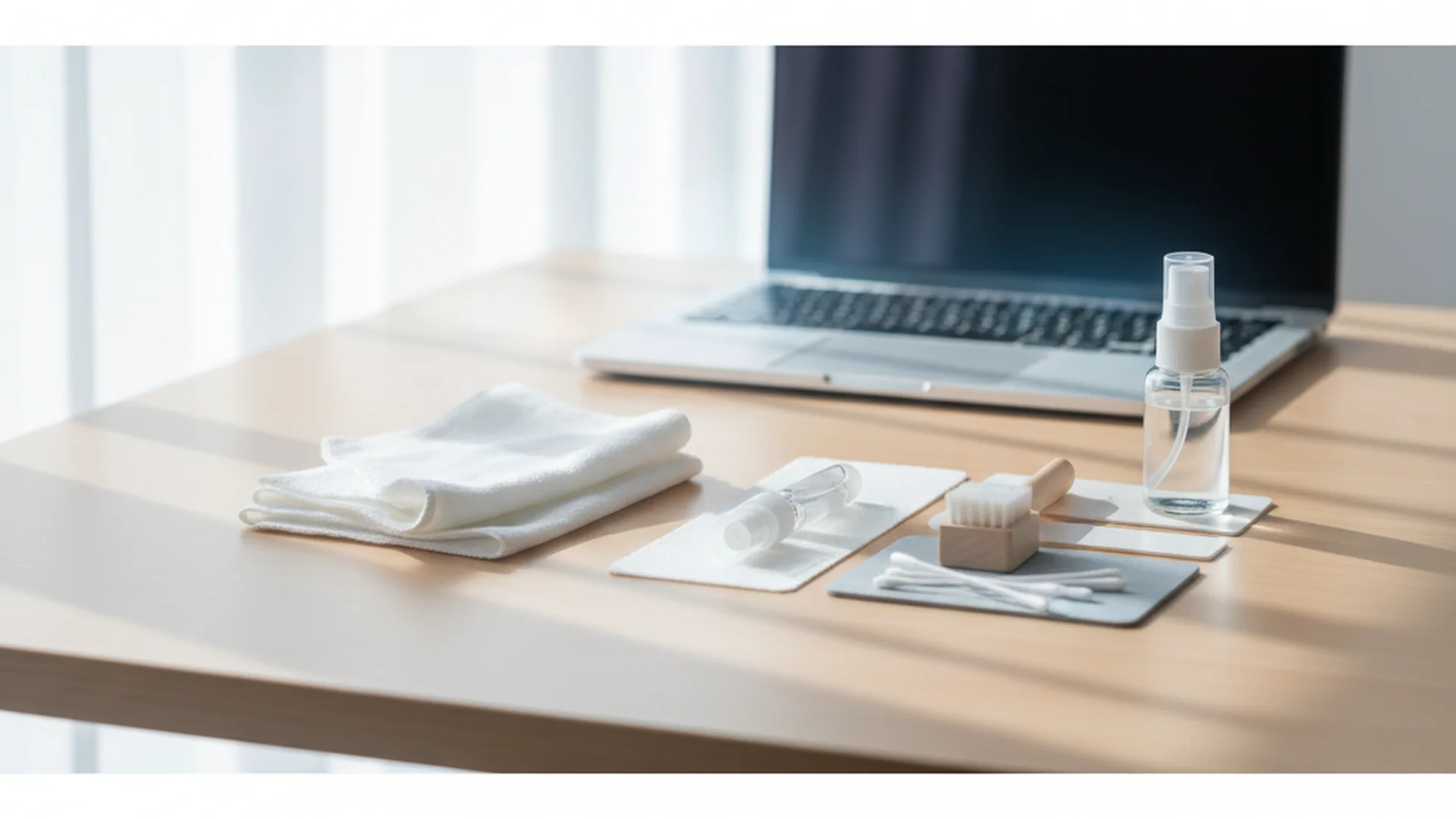
"Homemade" hacks are being replaced by specialized tools. You will need:
- 70% Isopropyl Alcohol: The gold standard for disinfecting.
- Distilled Water: Tap water contains minerals that can scratch screens.
- Microfiber Cloths: Ensure they are clean and lint-free.
- Compressed Air: For clearing out deep-seated debris.
- Soft Brushes: A high-density brush or even a clean makeup brush.
Step 1: How to Clean Laptop Screens (OLED & Mini-LED)
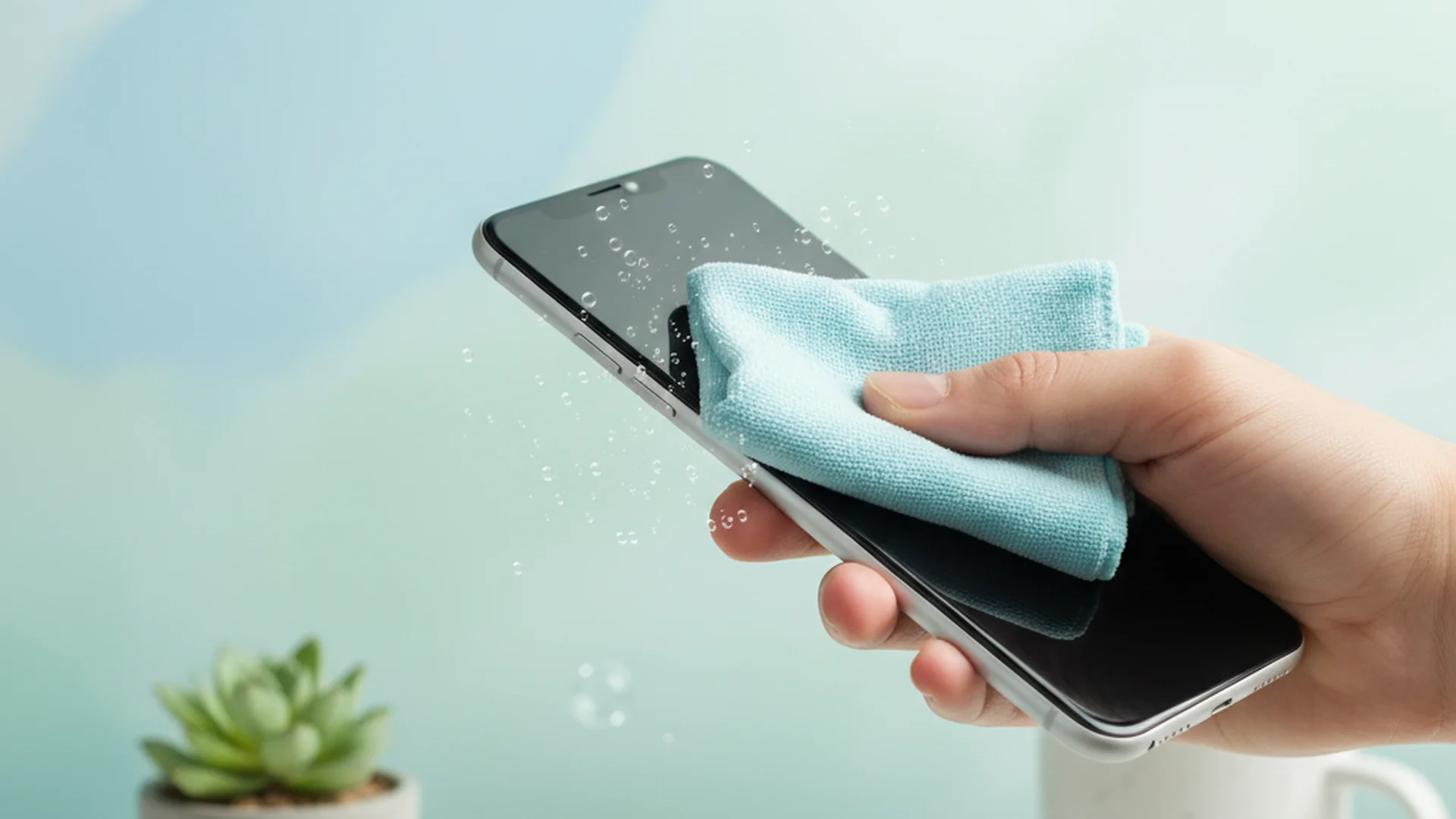
Modern screens, especially the OLED and Mini-LED displays found in high-end 2025 models, require extreme care. These screens often feature delicate anti-glare coatings that can be permanently stripped by the wrong chemicals.
Tip: Never spray any liquid directly onto the laptop screen. Always apply the liquid to your microfiber cloth first to prevent fluid from seeping into the bezel.
The "One-Direction" Technique
For OLED screens, avoid the traditional circular "scrubbing" motion. Instead, use long, one-directional strokes from top to bottom. This prevents the redistribution of oils and reduces the risk of damaging the display's surface.
Example 1: The Graphic Designer’s Dilemma Consider Sarah, a freelance designer using a 2025 MacBook Pro. She noticed "black splotches" appearing at the bottom of her screen. After inspection, it was discovered she was spraying glass cleaner on the frame. The liquid seeped behind the bezel into the backlight. Using a damp (not dripping) cloth could have saved her a $700 repair bill.
| Screen Type | Recommended Cleaner | Motion |
|---|---|---|
| Glossy LCD | 50/50 Distilled Water/Alcohol | Circular |
| Matte/Anti-Glare | Distilled Water Only | Vertical |
| OLED/Mini-LED | pH-Neutral Electronic Cleaner | One-Directional |
Step 2: Sanitizing the Keyboard and Trackpad
Since the keyboard is the primary contact point for bacteria, it requires the most frequent attention.
Removing Loose Debris
Turn your laptop upside down and give it a gentle shake over a trash can. You will be surprised at the crumbs and dust that fall out. Next, use compressed air.
Note: When using compressed air, hold the can upright and spray in short bursts at a 75-degree angle. This ensures you blow the dust out of the gaps rather than pushing it deeper into the chassis.
Disinfecting the Keys
Dip a cotton swab in 70% isopropyl alcohol. It should be damp, not soaking. Gently run the swab around the edges of each key.
Success: Using 70% alcohol is more effective for disinfecting than 91% or 99%. The higher water content in 70% alcohol slows down evaporation, allowing it to penetrate the cell walls of bacteria and viruses more effectively.
Step 3: Clearing Vents and Internal Fans
This is where the performance gains happen. If your laptop sounds like a jet engine taking off, your fans are likely clogged.
Holding the Blades
When using compressed air on the intake and exhaust vents, there is a hidden danger: Back-EMF. If the air pressure causes the fan to spin faster than it was designed to, it can generate a small electrical charge that flows back into the motherboard.
Warning: Use a toothpick or a thin plastic tool to gently hold the fan blades still through the vent slats while you apply compressed air. This prevents bearing damage and electrical surges.
Example 2: The "Overclocked" Gamer Mark noticed his gaming laptop was "stuttering" during intensive sessions. A quick check showed his GPU temperature hitting 95°C. After using a "10-in-1" cleaning kit to clear a thick "dust bunny" from his exhaust port, his temps dropped to 78°C, and his frame rates stabilized. This is the best way clean laptop performance issues without spending a dime on upgrades.
Step 4: Port Maintenance (USB-C & Charging)
In 2025, USB-C is the standard, but these ports are notorious for collecting pocket lint and debris. When a port is clogged, your charger might feel "loose" or fail to connect.
Using the Right Tools
Avoid using metal paperclips or needles, as these can bend the pins or cause a short. Instead, use a specialized "metal nib" from a modern cleaning kit or a sharpened wooden toothpick.
Tip: If your laptop isn't charging, check the port for lint before assuming the battery is dead. A 30-second cleaning of the charging port often solves the issue.
Common Mistakes to Avoid
- Using Paper Towels: These are made of wood pulp and are incredibly abrasive. They will leave "micro-scratches" on your beautiful display.
- Cleaning in Sleep Mode: A laptop in sleep mode is still "live." Any moisture that enters the system can still cause a short circuit. Always perform a full shutdown.
- Harsh Household Chemicals: Products like Windex (which contains ammonia) or bleach will strip the oleophobic (oil-repellent) coating off touchscreens and can cause plastic chassis parts to yellow or become brittle.
- Vacuuming the Interior: Never use a household vacuum on your laptop. Vacuums generate massive amounts of static electricity, which can instantly fry your motherboard.
Example 3: The Eco-Friendly Professional Many users are now switching to plant-based cleaners like Whoosh! or Screen Mom. These are alcohol-free and biodegradable, making them the best way clean laptop screens without worrying about chemical fumes or damaging eco-coatings.
Frequently Asked Questions
How often should I clean my laptop?
Can I use tap water to clean the screen?
Is it safe to use a vacuum on my keyboard?
What if I accidentally spill liquid while cleaning?
Conclusion
Taking the time to learn how to clean laptop components properly is one of the highest-ROI activities for any computer owner. By maintaining a schedule of weekly external wipes and quarterly internal air-dusting, you protect your health from millions of bacteria and protect your wallet from expensive hardware failures. As devices become more powerful and compact in 2025, physical maintenance is the key to ensuring your technology serves you well for years to come.
Success: Following this guide can increase your laptop's resale value and keep your workspace hygienic and professional.
Cleaning that keeps score
Every task earns points, every streak multiplies them, and Premium adds a household leaderboard plus a monthly Dustagorgon to beat.
- Free forever
- 30 badges to earn
- Up to 6 in a household
No card needed. Set up your rooms in a couple of minutes.